If you spend a lot of time at a computer, the placement of your monitor can affect your head, neck, and body.
A screen that is too low, too far away, too close, or out of center can cause you to lower your head, hunch over, or turn your head too far or too much. This can lead to neck and shoulder strain.
The best thing is that adjusting your screen is one of the easiest adjustments that can be made.
However, there is an important distinction: changing your monitor position does not automatically “fix” forward head posture.
It eliminates one common reason that you might be continually leaning forward or looking down at a screen. To make this adjustment more effective over time, position monitors correctly in relation to your movements, your workstation, and your seating posture or strengthening activities.
This guidebook explains how to position a computer monitor to allow for a more comfortable head and neck position, including monitor height, viewing distance, and screen angle, as well as considerations for dual monitors, use of a laptop, control of glare, and movement breaks.
Quick Answer: How Should You Position Your Computer Screen?
Position the top of the screen at or just below eye level and an arm’s length away. The display should directly face you so that you don’t have to lean over to see the screen. Adjust the distance, font size, and screen angle to your comfort and change positions often throughout the day.
What You Will Learn
- What forward head posture is
- Why computer screen position can influence head and neck posture
- How high your monitor should be
- How far your monitor should be from your eyes
- Where to position the screen horizontally
- Whether you need to tilt the monitor
- How to set up two or more monitors
- How to position a laptop
- How your chair and keyboard affect monitor height
- Common workstation mistakes
- How often you should change position
- Exercises that can complement an ergonomic setup
- When neck symptoms need professional evaluation
What Is Forward Head Posture?
Forward head posture (FHP) can be described as a position of the head in which it is placed more forward compared to the trunk than the normal comfortable position.
Forward posture may also be referred to as forward neck posture, tech neck, or nerd neck, although these terms may be used more generally to refer to a range of postures associated with computer work.
Computer work does not automatically cause forward head posture, but the way a workstation is set up can encourage prolonged forward or downward head positions.
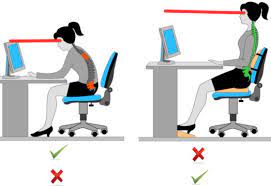
For instance, if an employee is forced to read the screen from a forward position, then he or she will subconsciously lean forward as well. Moreover, if the monitor is placed too low, the person will be looking down for extended amounts of time.
OSHA’s ergonomic guidelines highlight that monitor placement can cause poor head, neck, and back postures. Similarly, CCOHS recommends that monitor viewing angle and distance be considered when setting up a computer workstation.
If you are unsure whether your head position has actually changed, you can learn more about assessing forward head posture in our guide to the top tests for detecting forward neck posture.
Why Does Computer Screen Position Matter?
Where and how clearly you see your screen can influence how you position your head and neck.
If your text on your monitor is not easy to read, you might find yourself leaning forward or craning your neck. If the monitor is too low, you might find yourself leaning your head down. If the monitor is placed to one side, you might find yourself constantly twisting your head from side to side.
While this constant movement might not be a problem if you only make the movements for a short amount of time, it can be a problem if you continually make these movements for long periods of time.
OSHA recommends that the monitor be placed so that the top of the monitor is at or slightly below eye level and directly in front of the user. They also recommend that there be sufficient distance so that you do not have to lean your head, neck, or torso to look at it.
CCOHS recommends that badly placed monitors can cause the head and upper body to bend forward or sideways and that viewing angles and distances should be adjusted to suit the individual.
The goal, therefore, is not to force your neck into a rigid “perfect posture.”
The goal is to arrange your workstation so that you can see your screen comfortably while keeping your head and neck relatively neutral and changing position regularly.
How High Should Your Computer Monitor Be?
Monitor height is one of the first considerations.
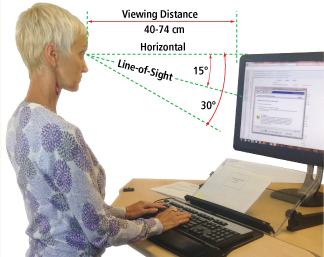
As a general rule of thumb, place the top of the monitor at or slightly below eye level when you are sitting normally.
This allows your eyes to look slightly downward to the areas on the computer which are used most often and eliminates the need to look up or down significantly.
OSHA recommends that the top of the monitor should be at or slightly below eye level while the center of the screen should generally be placed below the horizontal line of sight.
CCOHS recommends positioning the video display so that the normal line of sight is slightly downward. They also say that the placement should be considered a guide only and should be modified to suit individuals and tasks.
A simple monitor-height test
Sit in your normal working position.
Then:
- Relax your shoulders.
- Keep your head in a comfortable neutral position.
- Look straight ahead.
- Check the top edge of your monitor.
- If you have to look noticeably upward to see the screen, it may be too high.
- If you spend most of your time looking sharply downward, it may be too low.
Do not raise the monitor simply because you have heard that “eye level” is always better.
The correct height will depend upon such factors as the monitor size, your own body proportions, your glasses, the type of work you are doing, and where the information is located on the screen.
For instance, CCOHS states that persons wearing bifocal, trifocal or progressive lenses may need a slightly different monitor position to avoid leaning back while looking at the screen.
How Far Should Your Computer Screen Be From Your Eyes?
There is no one-size-fits-all distance that is perfect for everyone.
A good rule of thumb is to start with a distance of about an arm’s length, and adjust this distance up or down until you find the distance where you can comfortably read the screen without having to lean forward.
OSHA recommends a preferred distance of 20 to 40 inches (50-100 cm) with the added note that text size and individual needs are factors.
CCOHS also suggests that an arm’s length is a good place to start and recommends making the text larger rather than moving your monitor closer if you are having difficulty reading it.
Your monitor is too far if you:
- find yourself leaning forward,
- squint to read the text,
- have to get right up close to see details.
- have to remove yourself from the back of the chair to lean forward and do close work.
Your monitor is too close if you:
- feel like you’re working with your face pressed against the monitor,
- can’t see the whole screen comfortably,
- eyes feel strained when looking at it closely,
- keep sliding back on your chair to make room.
Instead of thinking about a specific number, there is a more practical rule of thumb.
Position the monitor so that you can read it comfortably while sitting up straight.
If the text is difficult to read, increase the font size or display scaling rather than moving the monitor unnecessarily close.
Should the Monitor Be Directly in Front of You?
Usually, yes.
Your primary monitor should be placed directly in front of you such that your head and torso face it squarely.
A monitor positioned to one side may require repeated neck rotation.
OSHA specifically directs you to place the monitor directly in front of you and warns that prolonged viewing from one side promotes uneven loading and fatigue.
Especially if you spend all day working at the screen, you will want to avoid developing a habitual rotated position to view whatever screen you’re facing.
If you spend only a small amount of time viewing a secondary screen, some rotation is fine. But it’s best to avoid making a rotated orientation your default posture.
What About Monitor Tilt?
Monitor tilt can be useful, but it is only one part of a comfortable screen setup.
The screen should be positioned so that it can be read easily, not require you to bend your neck at unnatural angles, and minimize glare.
Depending on your monitor and desk, it could be positioned slightly tilted backwards or forwards.
You don’t need a specific angle for every monitor.
The more important factors are:
- being able to see the screen easily,
- not needing to push your head back in order to see it,
- not needing to bend your neck sharply forwards in order to look at it,
- minimizing glare,
- position where you do most of your work being comfortable.
For a more detailed explanation of screen angle, see our separate guide on how to tilt your monitor screen to prevent forward head syndrome.
That article can go deeper into screen tilt without making this page compete with it for the same search intent.
How to Set Up Two Computer Monitors
Dual monitors require a bit more thought. The right arrangement depends on how much you use each screen.
If you use one monitor most of the time
Place your primary monitor directly in front of you.
Your secondary monitor can be placed to the side of your primary one, but should be angled slightly towards you.
This will reduce the amount of twisting needed for your main tasks.
If you use both monitors equally
If you use both monitors equally, position them together in front of you and angle them slightly inward so you do not have to repeatedly rotate your neck toward one side.
CCOHS recommends this approach because the objective is to reduce unnecessary head and body twisting while maintaining a comfortable viewing distance.
A common dual-monitor mistake
Do not automatically put your larger monitor to one side because there is more space there.
If it’s the one you are going to be using most of the time, you’re likely to end up forcing your body into twisted positions for hours at a time.
The monitor that you look at most should generally be the one that gets the most favorable position.
How to Position a Laptop to Reduce Forward Head Posture
Laptop computers present a unique ergonomic challenge.
Opening up a laptop on the desk causes the keyboard and screen to be permanently attached.
By raising the screen to make it easy to see, the keyboard becomes too high to type on comfortably.
Meanwhile, bringing the keyboard down to a comfortable position makes the screen too low.
When using a laptop for extended periods of time, it is best to use:
- a laptop stand or riser,
- an external keyboard,
- an external mouse,
- a correctly positioned external monitor if one is available.
This allows the display to be positioned independently from the hands.
The important thing to remember is that a laptop is not inherently ergonomic just because the display is positioned directly in front of the user.
If the display is too low, the user can still spend hours staring down at the laptop screen.
Your Monitor Height Depends on Your Chair and Desk Too
Changing only the monitor may not help the situation.
Your chair, desk, keyboard, and monitor are all related.
For example, if you have a low chair, you could end up with a higher monitor. Or, if you have a high chair, you could have poor foot support.
A practical workstation setup should allow you to:
- Keep your feet supported.
- Relax your shoulders.
- Keep your elbows reasonably close to your body.
- Keep your keyboard and mouse within easy reach.
- Maintain a comfortable back-supported sitting position.
- View the monitor without leaning your head or torso forward.
OSHA stresses the importance of viewing the monitor in combination with the keyboard, desk, chair, etc. and not to adjust it in isolation.
For more information on sitting posture and head position see our guide to how sitting posture influences head alignment.
Reduce Glare So You Do Not Lean Forward
Glare is a neglected problem at the workstation.
Reflections that make the text on a computer screen difficult to read can cause the operator to lean forward or adjust his head in an effort to see more clearly.
Try:
- Moving the monitor so it is not directly in front of a window.
- Adjusting the blinds or curtains.
- Tilting the monitor.
- Moving the desk light.
- Making the text on the screen larger.
- Cleaning the monitor.
- Adjusting the contrast and brightness of the screen.
OSHA says that when considering monitor placement, glare on the screen from lights, windows, or other sources should be taken into account.
The idea is simple:
You should be able to see the text on the monitor clearly without leaning forward or repeatedly turning your head.
Do Not Stay in One “Perfect” Posture All Day
This is one of the most crucial points in the entire article.
You do not have to maintain one posture for 8 hours straight.
Even with a well-positioned monitor, staying in one position for prolonged periods may still contribute to discomfort and fatigue.
CCOHS recommends that workstations be organized in a way that encourages changing postures, and avoiding sitting or standing in one position for too long.
During your workday:
- Stand up
- Walk around
- Move your shoulders
- Shift position
- Try to look off in to the distance
- Take a break every hour or so anyway, just to move.
Don’t sit around like a bump on a log just because you’ve got an excellent posture.
Think about it as making easy movements possible, and not about making it hard.
A Simple 5-Minute Computer Workstation Reset
If you’re working at a computer all day, this checklist should be a helpful reminder.
How to set up your computer workspace:
If you work at a computer frequently, take this checklist:
1. Sit normally:
Don’t be fake, just sit like you normally would when working but with feet support and back support.
2. Relax your shoulders and look straight ahead:
Check alignment by looking at where your monitor starts.
3. Adjust monitor height:
Place monitor so that the top of it is at or slightly below eye level.
You may need to move it closer or farther away.
4. Adjust distance:
Move the monitor until you can read the screen without leaning toward it.
Increase text size if necessary.
5. Center the screen:
Position the monitor directly in front of you if it is your primary display.
6. Check your keyboard:
See if it is close enough to where you are sitting so you don’t have to reach for it.
7. Check glare:
Check to see if there are any glare spots on your screen that are making it hard to see.
8. Move:
Stand up, walk around, or change position before returning to work. This eight-step reset is often more useful than chasing a single “perfect” monitor measurement.
Exercises Can Complement Your Workstation Setup
Modifying the position of your monitor only takes care of one variable.
If forward head posture is part of your overall postural pattern, exercises that work on neck control, upper-back strength, and mobility may complement your workstation changes.
The following exercises may complement an ergonomic workstation:
Chin Tucks
The movement should be a gentle backward glide of the head rather than forcing the chin downward toward the chest.
Learn how to perform chin tucks correctly.
Upper Back Strengthening
Rows and other movements that strengthen and stabilize the scapular (shoulder blade) girdle.
Gentle Neck Mobility
If you have limited range of motion and your neck is tight, controlled mobility drills may also be of benefit.
Our guide to neck stretches for forward neck posture covers several options.
A Complete Forward Head Posture Program
If you want to combine ergonomic changes with exercises rather than treating your monitor as the entire solution, see our guide on Forward Head Posture Exercises.
Common Computer Screen Position Mistakes
- Placing the monitor too low
This can encourage looking down for prolonged periods.
- Having the monitor too high
A screen that’s too high for you can encourage you to look back.
- Keeping the screen too far away
If you have difficulty reading the screen, you may well find yourself leaning forward repeatedly.
- Making the screen too close
This can make viewing uncomfortable and may encourage an awkward working position.
- Putting the main monitor side on
This will mean you have to turn your head repeatedly during the day.
- Leaving the laptop flat on the desk for hours
The low screen height will encourage looking down for long periods.
- Raising the height of the monitor only
Your screen, chair, keyboard, and desk need to work together.
- Trying to maintain “perfect posture” all day
This shouldn’t be another reason why you can’t move or change position.
Can Adjusting Your Monitor Fix Forward Head Posture?
It can help, but monitor adjustment alone is unlikely to be the complete solution.
If your screen position is repeatedly encouraging you to lean forward or look downward, correcting your workstation can remove that trigger.
Forward head posture can also be influenced by other factors, including movement habits, muscle endurance, mobility, sitting position, and work demands.
Think of the monitor adjustment as taking away an obstacle
Then addressing the rest of the picture through movement, exercise, workstation optimization, and professional guidance as needed.
When Should You See a Healthcare Professional?
Neck pain isn’t always caused by something as simple as poor posture.
If your symptoms are severe, persistent, getting worse, or accompanied by any of the following, seek medical evaluation:
- Numbness or tingling in your arm or hand
- New or worsening weakness
- Loss of coordination
- Severe headache
- Dizziness or other related neurological symptoms
- Pain due to an injury
- Symptoms that persist or worsen despite reasonable self-care
An ergonomic assessment can help improve your workstation, but it can’t replace proper medical care if you actually need it
Frequently Asked Questions:
What is the best monitor height for forward head posture?
The top of the monitor should be at or just below eye level for you when you are sitting normally. The main area to view should be comfortable to look at and not require large up and down movements of the head. The usual goal is to have the main viewing area slightly below horizontal eye level, rather than requiring you to look upward.
How far away should a computer monitor be from my eyes?
As a general rule of thumb, the monitor should be about arm’s length. OSHA recommends a preferred range of 20-40 inches, whereas CCOHS recommends adjusting the distance depending on the person and task. If text is difficult to read, increasing the font size or display scaling may be better than moving the monitor unnecessarily close.
Should the monitor be directly in front of me?
Yes, your main monitor should be directly in front of you as much as possible, to reduce the amount of twisting and turning of your head and neck.
Should I tilt my monitor back?
There is no single monitor-tilt angle that works for everyone. Adjust the screen so that you can view it comfortably while minimizing glare and avoiding excessive neck movement.
Is a laptop bad for forward head posture?
A laptop is not inherently bad for posture. The problem is that its screen and keyboard are connected, making it difficult to position both at an ideal height for prolonged work. Using a laptop stand with an external keyboard and mouse can make using a laptop much easier on your posture.
Can monitor position reduce neck pain?
Improper posture can contribute to a number of neck and shoulder issues, and having the monitor at a good height and distance can help reduce exposure to these uncomfortable postures; however, it should not be considered a cure for such ailments. Monitor height and position should be considered part of a greater ergonomic strategy to make your computer setup more comfortable.
Is eye-level monitor positioning always best?
Not necessarily. Eye-level is a good target for the top of the monitor, but monitors are viewed from slightly below eye-level, so the top of the monitor is actually a little lower than your horizontal line of sight. Your screen size, task, body size, and glasses can all affect this.
How often should I take breaks from computer work?
Take regular movement breaks and change positions throughout the workday rather than remaining in one position for prolonged periods. The CCOHS recommends making sure that your workstation allows for easy changes in position during breaks.
Bottom Line
The best computer screen position is one that allows you to read the display comfortably without repeatedly leaning your head or torso forward, looking sharply downward, or twisting toward the screen.
Here are some basic guidelines:
- Set the top of the monitor at or just below eye level.
- Place the screen at a distance of approximately an arm’s length, and adjust so that it is comfortable to look at.
- Position your primary monitor directly in front of you.
- Avoid looking up or down at an extreme angle.
- Reduce glare so that you are not leaning toward or away from the screen.
- If you are using a laptop, an external keyboard and mouse may be useful in allowing you to raise the screen to eye-level.
- Make sure your chair, desk, keyboard, and monitor all work together comfortably.
- Instead of trying to hold a rigid posture, alternate positions frequently throughout the day, and take breaks when possible.
In combination with other postural adjustments, addressing your computer screen position can help reduce forward-head posture, though it will not necessarily “fix” other contributing factors on its own.
Forward-head posture will not be instantly remedied by moving your computer screen to the “correct” position.
However, if your current setup causes or exacerbates the problem, correcting it can certainly make your posture easier to manage.
References:
- Occupational Safety and Health Administration (OSHA) — Computer Workstations
OSHA: Computer Workstations - OSHA — Good Working Positions at Computer Workstations
OSHA: Good Working Positions - OSHA — Computer Workstation Evaluation Checklist
OSHA: Computer Workstation Evaluation Checklist - Canadian Centre for Occupational Health and Safety (CCOHS) — Positioning the Monitor
CCOHS: Positioning the Monitor - CCOHS — Working in a Sitting Position: Basic Requirements
CCOHS: Working in a Sitting Position - CCOHS — Office Ergonomics: Eye Discomfort in the Office
CCOHS: Eye Discomfort in the Office - CCOHS — How to Adjust Office Chairs
CCOHS: How to Adjust Office Chairs - Why Trust Us?
- For Educational Purposes Only