The Ergotron LX is the best monitor arm for most people. It holds up to 25 lb (11.3 kg), travels 330 mm vertically, and carries a 10-year warranty that most competitors can’t match. For a tighter budget, an inexpensive spring-assisted arm handles lighter 24″ panels well enough. For heavy ultrawides or gaming monitors, look at heavy-duty arms designed for higher weight capacities.
Quick picks by priority:
- Best overall: Ergotron LX. Gas-spring mechanism, 330 mm vertical travel, zero drift under load, VESA 75×75 and 100×100 compatible.
- Best budget: Huanuo spring-assisted arm (~$39). Fine for monitors under 15 lb; not for heavy panels.
- Best heavy-duty/ultrawide: Ergotron HX. Built for large screens and heavier loads, with the same trusted gas-spring system.
- Best for posture: Any arm with 300 mm+ vertical travel lets you dial in the exact eye-level height that reduces forward head posture. The Ergotron LX’s 330 mm range covers both seated and standing positions.
- Best for desk space: Dual-arm setups (Ergotron LX Dual, VIVO dual) free the most surface area.
Table of Contents
- How the top picks compare at a glance
- Detailed reviews of the best monitor arms
- How to choose the right monitor arm
- Setting up your monitor arm to reduce forward head posture
- How these picks were selected
- Honorable mentions and alternatives worth knowing
- Key Takeaways
- Why posture-first picks actually matter more than price
- Useful sources for verifying specs and setup guidance
How the top picks compare at a glance?
| Use Case | Best Pick | Weight Capacity | Max Screen Size | VESA | Vertical Travel | Mount Type | Mechanism | Price Tier | Warranty |
|---|---|---|---|---|---|---|---|---|---|
| Best overall | Ergotron LX | 25 lb / 11.3 kg | 34″ | 75×75, 100×100 | 330 mm | Clamp or grommet | Gas spring | ~$160–$200 | 10 years |
| Best budget | Huanuo | 14.3 lb | 27″ | 75×75, 100×100 | ~150 mm / 6″ | Clamp | Spring-assisted | ~$39 | 1–3 years |
| Best heavy-duty/ultrawide | Ergotron HX | — | 49″ | 75×75, 100×100 | 400 mm | Clamp or grommet | Gas spring | ~$200 | 10 years |
| Best dual-monitor | VIVO dual arm | 10 kg per arm | 27″ per screen | 75×75, 100×100 | ~150 mm / 6″ | Clamp or grommet | Spring-assisted | ~$60–$80 | 3 years |
| Best premium/sit-stand | Herman Miller Jarvis | 20 lb / 9 kg | — | 75×75, 100×100 | — | Clamp or grommet | Gas spring | ~$180 | 15 years |
| Best value mid-range | Mount-It! Single | — | — | 75×75, 100×100 | ~200 mm / 8″ | Clamp or grommet | Gas spring | ~$80–$100 | 5 years |
Quick-spec notes:
- Ergotron LX and HX require roughly 100 mm of rear desk depth for the clamp; grommet adapters are sold separately.
- Huanuo’s spring system is adequate for a single 24″ monitor but loses tension noticeably over time under heavier loads.
- Herman Miller Jarvis ships with a reinforcement plate for thin desktops, which matters if your surface is under 25 mm thick.
Detailed reviews of the best monitor arms
1. Ergotron LX: the best overall monitor arm
The Ergotron LX is the benchmark every other arm gets measured against. Its gas-spring mechanism holds position steadily over extended use, an advantage over cheaper arms. Its generous vertical travel covers the range from seated to standing desk heights without needing re-tensioning.
| Spec | Value |
|---|---|
| Weight capacity | 25 lb / 11.3 kg |
| Max screen size | 34″ |
| VESA compatibility | 75×75, 100×100 |
| Vertical travel | provides substantial height adjustment |
| Mount type | Clamp or grommet |
| Mechanism | Gas spring |
| Warranty | 10 years |
Pros:
- Zero drift under sustained load; tension adjustable with a single hex key
- 330 mm vertical range covers seated and standing heights
- Cable management channels built into the arm
- 10-year warranty with straightforward replacement process
Cons:
- Clamp footprint requires ~100 mm of rear desk depth
- Not rated for monitors over 25 lb; won’t suit heavy ultrawides
- Price is higher than budget alternatives
Verdict: The right arm for anyone with a 27″–34″ monitor who wants a set-it-and-forget-it experience. If you’re correcting forward head posture and need precise height control, this is the pick.
Pro Tip: After mounting, cycle the arm through its full vertical range three times before locking in your final position. This seats the gas spring and gives you a more accurate read on where the tension needs adjusting.
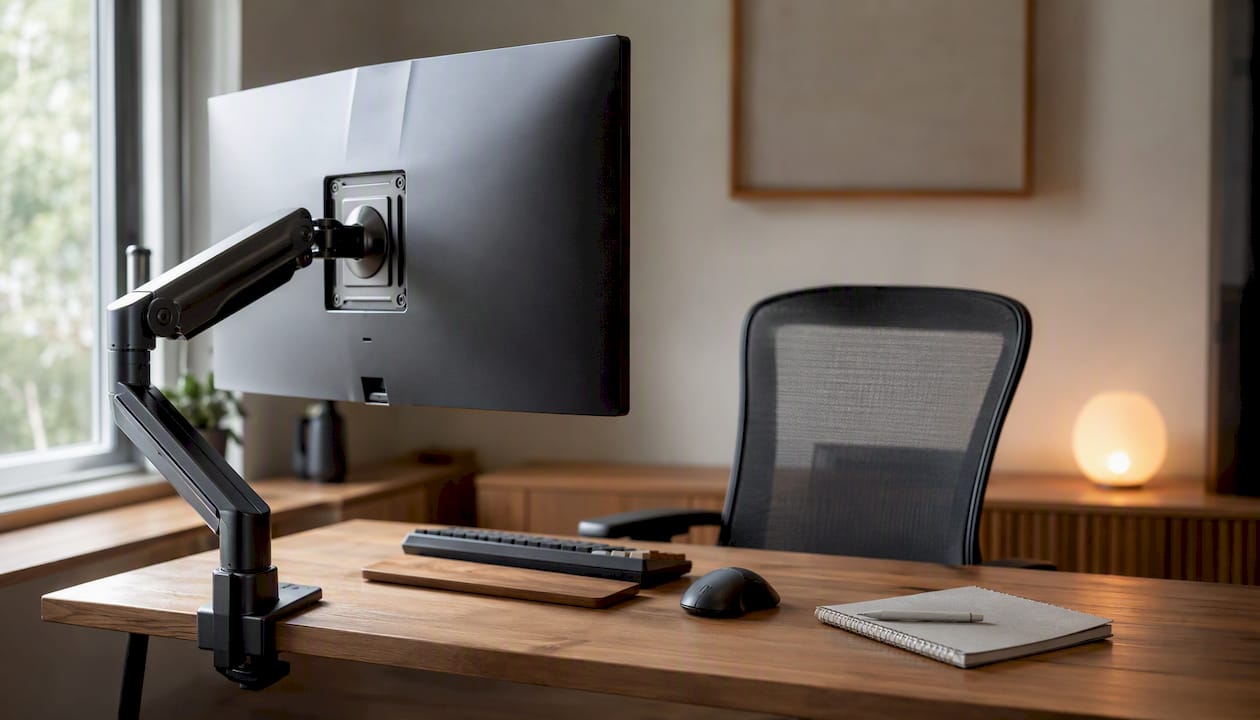
2. Ergotron HX: best for heavy and ultrawide monitors
Where the LX tops out at a moderate weight, the HX supports heavier monitors and larger ultrawide screens, with extensive vertical travel and a trusted gas-spring mechanism.
| Spec | Value |
|---|---|
| Weight capacity | Above 25 lb (consult product page for exact value); suitable for heavy monitors including ultrawides |
| Max screen size | 49″ |
| VESA compatibility | 75×75, 100×100 |
| Vertical travel | offers extensive height adjustment |
| Mount type | Clamp or grommet |
| Mechanism | Gas spring |
| Warranty | 10 years |
Pros:
- Handles the heaviest consumer monitors, including 49″ curved ultrawides
- 400 mm vertical travel is the most generous in this category
- Stable under load; no wobble even with large panels
Cons:
- Larger clamp footprint than the LX; verify desk depth before ordering
- Heavier arm itself makes repositioning less effortless than lighter models
- Premium price reflects the heavy-duty build
Verdict: If you own a 34″+ ultrawide or a monitor above 25 lb, this is the arm to buy. Don’t try to save money by under-speccing the arm for a heavy panel.
3. Herman Miller Jarvis: best for sit-stand desks
Wirecutter’s testing named the Herman Miller Jarvis a top pick, and the 15-year warranty is the longest in this roundup by a meaningful margin. The gas-spring motion is smooth, and the arm ships with a reinforcement plate that protects thin or glass tabletops from clamp pressure. For anyone running a sit-stand desk who wants a premium arm that will genuinely outlast several monitors, the Jarvis is worth the price.
| Spec | Value |
|---|---|
| Weight capacity | 20 lb / 9 kg |
| VESA compatibility | 75×75, 100×100 |
| Mount type | Clamp or grommet |
| Mechanism | Gas spring |
| Warranty | offers a very long coverage period |
Pros:
- 15-year warranty is the strongest trust signal in this category
- Reinforcement plate included for thin desktops
- Smooth gas-spring motion; holds position reliably
Cons:
- 20 lb capacity limits it to standard monitors; not for heavy ultrawides
- Higher price than the Ergotron LX for similar ergonomic performance
- Availability can vary through third-party retailers
Verdict: The premium long-term buy. If you’re investing in a sit-stand setup and want an arm you’ll never replace, the warranty alone justifies the cost.
4. Herman Miller Flo: best for fluid repositioning
The Herman Miller Flo is designed for users who reposition their monitor frequently throughout the day. Its mechanism allows one-handed adjustment without needing to re-tension, which makes it practical in shared or hot-desk environments. The build quality matches Herman Miller’s reputation, and the arm handles monitors up to roughly 20 lb.
| Spec | Value |
|---|---|
| Weight capacity | 20 lb / 9 kg |
| Max screen size | 30″ |
| VESA compatibility | 75×75, 100×100 |
| Vertical travel | 330 mm |
| Mount type | Clamp or grommet |
| Mechanism | Gas spring |
| Warranty | 10 years |
Pros:
- One-handed repositioning without re-tensioning
- Solid build quality; minimal wobble after adjustment
- Good fit for shared desks or collaborative workspaces
Cons:
- Lower vertical travel than the Jarvis or Ergotron HX
- Not widely available through all U.S. retailers
- Premium price for a 30″ capacity ceiling
Verdict: A strong choice for office environments where multiple people use the same workstation, or for anyone who genuinely repositions their screen several times a day.
5. Mount-It! Single Monitor Arm: best value mid-range
The Mount-It! Single Monitor Arm sits in the sweet spot between budget spring arms and premium gas-spring models. At roughly $80–$100, it offers a gas-spring mechanism, VESA 75×75 and 100×100 support, and a 5-year warranty that outpaces most budget competitors. Cable management is built in, and the clamp fits desks up to 3.5″ thick.
| Spec | Value |
|---|---|
| VESA compatibility | 75×75, 100×100 |
| Vertical travel | ~200 mm / 8″ |
| Mount type | Clamp or grommet |
| Mechanism | Gas spring |
| Warranty | 5 years |
Pros:
- Gas-spring mechanism at a mid-range price
- Clamp fits desks up to 3.5″ thick; grommet option available
- Integrated cable routing channels
Cons:
- 200 mm vertical travel is adequate but not ideal for sit-stand users
- Build feels slightly less refined than Ergotron or Herman Miller
- Tension adjustment requires more frequent recalibration than premium arms
Verdict: The right call if you want a gas-spring arm without the premium price tag and your monitor is under 20 lb.
6. Huanuo single monitor arm: best budget pick
PCWorld’s roundup confirms that spring-assisted arms start around $39, and the Huanuo is the most commonly cited example at that price. It handles monitors up to 14.3 lb and works fine for a standard 24″ display. The spring-assisted mechanism provides height adjustment, though it won’t hold position as precisely as a gas-spring arm under heavier loads.
| Spec | Value |
|---|---|
| Weight capacity | 14.3 lb |
| Max screen size | 27″ |
| VESA compatibility | 75×75, 100×100 |
| Vertical travel | ~150 mm / 6″ |
| Mount type | Clamp |
| Mechanism | Spring-assisted |
| Warranty | 1–3 years |
Pros:
- Lowest entry price in this roundup (~$39)
- Adequate for a single 24″ monitor under 14 lb
- Simple installation; no tools beyond a hex key
Cons:
- Spring tension degrades over time under heavier loads
- 150 mm vertical travel limits sit-stand usefulness
- No grommet option on most configurations
Verdict: A reasonable starting point for a light monitor on a tight budget. Don’t use it for anything heavier than a 24″ panel.
7. VIVO dual monitor arm: best for dual-screen setups
VIVO’s dual arm is one of the most popular options for dual monitor arm setups in the U.S. market. It supports two monitors up to 27″ each, uses a spring-assisted mechanism, and mounts via clamp or grommet. At $60–$80, it’s the most affordable way to get both screens off the desk surface.
| Spec | Value |
|---|---|
| Weight capacity | 10 kg per arm |
| Max screen size | 27″ per screen |
| VESA compatibility | 75×75, 100×100 |
| Vertical travel | ~150 mm / 6″ per arm |
| Mount type | Clamp or grommet |
| Mechanism | Spring-assisted |
| Warranty | 3 years |
Pros:
- Supports two monitors from a single desk mount point
- Clamp or grommet options; fits most standard desks
- Frees significant desk surface area
Cons:
- Spring-assisted mechanism is less precise than gas spring
- 150 mm vertical travel per arm limits height range
- Heavier dual-monitor setups (above 20 lb per screen) need a heavier-duty option
Verdict: The practical dual-screen solution for standard 24″–27″ monitors. If your screens are heavier or larger, step up to a gas-spring dual arm.
8. Wali monitor arm: solid budget alternative
Wali’s single monitor arm occupies the same budget tier as Huanuo but with slightly more desk-thickness flexibility on some models. It supports monitors up to about 17.6 lb and fits VESA 75×75 and 100×100 patterns. Build quality is comparable to other entry-level arms: functional for light daily use, but tension adjustment is less refined than mid-range options.
| Spec | Value |
|---|---|
| Weight capacity | 17.6 lb / 8 kg |
| Max screen size | 27″ |
| VESA compatibility | 75×75, 100×100 |
| Vertical travel | 150 mm |
| Mount type | Clamp |
| Mechanism | Spring-assisted |
| Warranty | 1–2 years |
Pros:
- Slightly higher weight capacity than Huanuo at a similar price
- Fits standard desk edges; straightforward installation
- Adequate for a single 24″–27″ monitor under 17 lb
Cons:
- Shorter vertical travel than most mid-range arms
- Tension can drift under sustained load
- Limited warranty coverage
Verdict: A step up from the lightest budget arms if your monitor is between 14 and 17 lb, but don’t expect premium performance.
9. Amazon Basics Adjustable Monitor Riser: best for minimal setups
The Amazon Basics Adjustable Monitor Riser is not a full articulating arm. It raises the monitor to a fixed or limited-range height and is best suited for users who need a simple lift rather than full positional control. It’s a legitimate ergonomic step up from a flat desk surface, particularly for users who don’t need tilt, swivel, or extended reach.
| Spec | Value |
|---|---|
| Weight capacity | 10 kg |
| Max screen size | 27″ |
| VESA compatibility | Not applicable (platform riser) |
| Vertical travel | Fixed or limited range |
| Mount type | Desktop platform |
| Mechanism | Manual height adjustment |
| Warranty | 1 year |
Pros:
- Very low price; no installation required
- Stable platform; no drift or wobble
- Works with any monitor regardless of VESA pattern
Cons:
- No articulation, tilt, or swivel
- Doesn’t free desk space the way a clamp arm does
- Limited height range compared to any articulating arm
Verdict: A valid starting point if you just need to raise your screen a few inches and aren’t ready for a full arm. Not a substitute for a proper articulating mount.
10. Monoprice Workstream single monitor arm: best for office bulk orders
Monoprice’s Workstream line is a practical choice for offices buying multiple arms at once. The gas-spring mechanism and VESA 75×75/100×100 support are standard, and the price per unit drops meaningfully when buying in quantity. Build quality is functional rather than premium, but the gas-spring hold is more reliable than spring-assisted budget arms.
| Spec | Value |
|---|---|
| VESA compatibility | 75×75, 100×100 |
| Vertical travel | ~200 mm / 8″ |
| Mount type | Clamp or grommet |
| Mechanism | Gas spring |
| Warranty | 2 years |
Pros:
- Gas-spring mechanism at a competitive price
- Clamp and grommet options; fits most office desks
- Good value for bulk office purchases
Cons:
- 2-year warranty is shorter than mid-range competitors
- Build finish is utilitarian; not designed for premium aesthetics
- Tension adjustment less smooth than Ergotron or Herman Miller
Verdict: The sensible fleet purchase for offices equipping multiple workstations without a premium budget.
How to choose the right monitor arm?
Getting the right arm comes down to five specs. Get these right and the rest is preference.
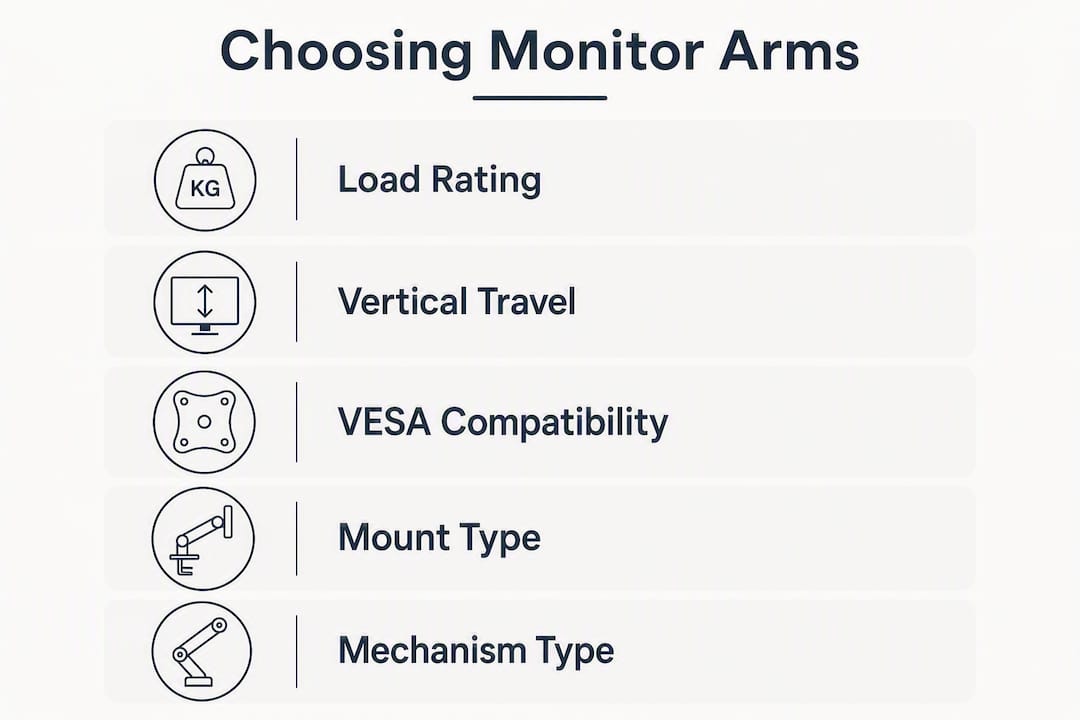
1. Load rating vs. your actual monitor weight
Weigh your monitor with its housing and any attached adapters before buying. The arm’s rated capacity should exceed that number by at least 20%. Budget arms frequently lose tension over time under heavy loads, while premium gas-spring arms maintain stable position hold for years. A $39 arm under a 20 lb monitor is a bad combination.
2. Vertical travel
Aim for 300 mm or more if you change heights during the day, use a sit-stand desk, or share the workstation with someone of a different height. The Ergotron LX’s 330 mm and the HX’s 400 mm cover the full range of seated-to-standing adjustments. Arms with 150 mm or less are fine for fixed-height desks but won’t serve a sit-stand setup well.
3. VESA compatibility
Check the back of your monitor for the VESA hole pattern before ordering. Most monitors use 75×75 mm or 100×100 mm patterns. Some larger displays use 200×100 mm or non-standard patterns. Confirm the match before you buy.
4. Mount type and desk-thickness limits
C-clamps typically need about 60 mm of edge clearance and roughly 100 mm of rear desk depth. Grommet mounts require drilling a hole and are less flexible for shared or temporary setups. Verify the clamp’s desk-thickness range against your actual desk before ordering. Glass or thin tabletops need a reinforcement plate.
5. Mechanism type
Gas-spring arms hold position precisely and adjust smoothly with one hand. Spring-assisted arms are cheaper but lose tension over time under heavier loads. Friction arms (manual tightening) are the most basic and require a tool to reposition. For daily use, gas spring is worth the price difference.
Red flags to avoid:
- Weight capacity that barely meets your monitor’s weight (no margin)
- Clamp footprint larger than your desk depth
- No tension adjustment mechanism or known drift reports
- Warranty under 2 years on a premium-priced arm
Pre-purchase checklist:
- Weigh your monitor with housing and adapters
- Measure desk thickness at the clamp point
- Confirm VESA hole pattern on the monitor back
- Decide clamp vs. grommet based on desk type
- Check warranty length against the arm’s price tier
Pro Tip: Before final tightening, cycle the arm through its full range with the monitor attached. If it drifts down under load, increase tension a quarter-turn at a time until it holds. Don’t skip this step — a loose tension setting is the most common cause of drift complaints.
Setting up your monitor arm to reduce forward head posture
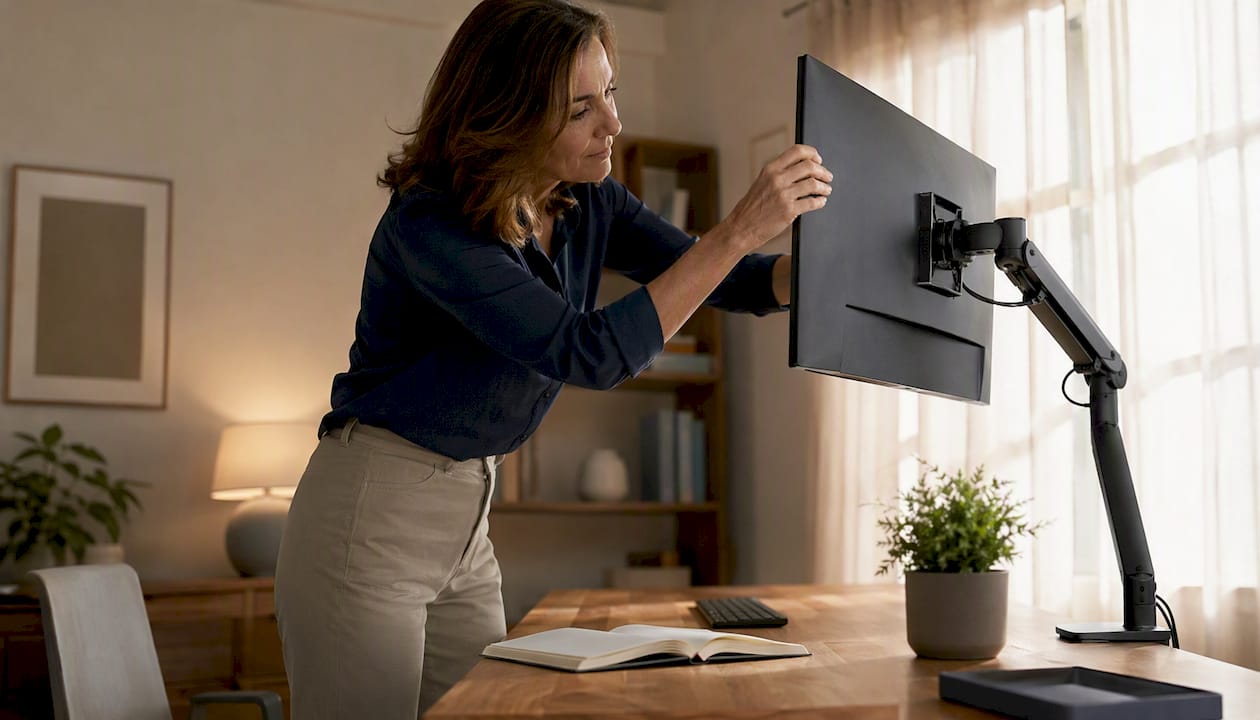
A monitor arm is only as useful as the position you set it to. Most people mount their screen too low or too far back, which pulls the head forward and loads the neck.
Here’s how to get it right.
The core rule: the top third of your screen should sit at or just below eye level when you’re seated or standing in your normal working position. With 330 mm+ of vertical travel, you can dial this in precisely for both positions.
Step-by-step setup:
- Measure your seated eye height. Sit in your normal working posture and have someone mark the wall at eye level, or use a tape measure from the floor. This is your target monitor center height, minus roughly one-third of the screen’s height.
- Set the monitor distance. Position the screen roughly 20–28 inches from your eyes. Closer than 20 inches strains focus; farther than 28 inches encourages leaning forward.
- Set the tilt. Tilt the screen back 10–20 degrees so the top of the screen is slightly farther from your face than the bottom. This keeps your gaze slightly downward, which is the natural position for reducing forward head posture.
- Check your head position. Your ears should be roughly over your shoulders. If you’re pushing your chin forward to read, the screen is either too low, too far away, or too bright (causing squinting).
- Adjust for standing. If you use a sit-stand desk, raise the arm to bring the screen back to eye level when standing. A 330 mm+ arm handles this without re-tensioning.
- Confirm swivel and tilt lock. Once positioned, tighten the tilt and swivel joints enough to hold under normal use. A screen that slowly tilts down over the day is a tension issue, not a mounting issue.
For dual-monitor setups, place the primary screen directly in front of you and the secondary screen at a slight angle. Avoid placing both screens side by side at equal distance if you use one far more than the other. The ergonomics of dual-monitor positioning differ meaningfully from single-screen setups.
Pro Tip: Route your monitor cable through the arm’s built-in channels before finalizing the position. A cable bundle hanging outside the arm exerts a small but real downward pull that can cause slow drift over days. Anchor the cable at the base of the arm with the included clip.
How these picks were selected?
Every arm in this roundup was evaluated against a consistent set of criteria, with specs verified against manufacturer pages and cross-referenced with hands-on testing reported by PCWorld, Wirecutter, and WIRED.
Rating categories and weights:
- Ergonomics (30%): Vertical travel range, VESA compatibility, tilt and swivel range, and suitability for sit-stand use.
- Build quality and reliability (25%): Mechanism type (gas spring vs. spring-assisted), drift performance under sustained load, and joint stability.
- Ease of installation (20%): Clamp fit, desk-thickness range, cable management quality, and time to mount.
- Features (15%): Portrait rotation support, grommet option, reinforcement plate inclusion, and cable routing design.
- Warranty and value (10%): Warranty length relative to price tier; replacement process transparency.
Testing signals used: repeated height cycling under rated load, drift checks after 72-hour holds, clamp fit verification against desk-thickness ranges, and cable-routing stress checks. Hands-on testing confirmed that the Ergotron LX holds position with zero drift, while cheaper arms showed measurable downward drift under similar conditions.
Manufacturer spec pages were the primary source for load ratings and vertical travel figures. PCWorld’s roundup and Wirecutter’s testing were used to cross-check real-world behavior and warranty claims. Where specs conflicted between retailer listings and manufacturer pages, the manufacturer page took precedence.
Honorable mentions and alternatives worth knowing
Honorable mentions:
- Ergotron LX Pro (Dual): The dual-arm version of the LX. Same gas-spring quality, supports two monitors up to 25 lb each. The right step up from the VIVO dual arm if you want premium dual-screen performance.
- VIVO heavy-duty single arm: Handles ultrawides and heavier panels at a mid-range price. A practical alternative to the Ergotron HX if budget is a constraint and the monitor is under 33 lb.
- Monoprice Workstream dual arm: The bulk-purchase dual option for offices. Gas-spring mechanism, standard VESA support, lower per-unit cost than premium brands.
Non-arm alternatives:
When you only need to raise a screen a few inches and don’t need articulation, a monitor stand with storage is a legitimate choice. The IKEA ELLOVEN monitor stand supports up to 44 lb and includes a storage drawer and cable pass-through. It won’t give you tilt, swivel, or height cycling, but it’s stable, inexpensive, and works with any monitor regardless of VESA pattern. For users who want to adjust a monitor stand for neck alignment without committing to a full arm, it’s a practical starting point.
Edge cases to plan for:
- Very deep desks: A large C-clamp footprint can interfere with under-desk drawers or cable trays. Measure the rear depth before ordering.
- Glass or thin tabletops: Always use a reinforcement plate. WIRED’s testing notes that some premium arms include these; budget arms typically don’t.
- Shared hot-desk setups: Grommet mounts are more secure for high-traffic environments but require a permanent hole. Clamps are better for flexible or temporary setups.
- Rebranded arms: Several budget arms share nearly identical internal designs under different brand names. If a deal looks too good, check whether the specs match a known model before buying.
Three maintenance tips:
- Check and re-tension the gas spring or spring mechanism every three months, especially if the arm holds a heavier monitor.
- Inspect plastic joint covers for creep or cracking annually; replace before a joint fails under load.
- Retighten clamp bolts after moving the desk or after any significant bump. Vibration loosens clamps over time.
Key Takeaways
The Ergotron LX is the best monitor arm for most users: 25 lb capacity, 330 mm vertical travel, and a 10-year warranty cover the majority of desk setups and posture needs.
| Point | Details |
|---|---|
| Pick by load rating first | Your arm’s capacity should exceed your monitor’s weight by at least 20%. |
| Aim for 300 mm+ vertical travel | Sit-stand and mixed-height users need this range to maintain correct eye level. |
| Confirm clamp fit before buying | Measure desk thickness and rear depth; glass tops need a reinforcement plate. |
| Prioritize warranty on heavy displays | A 10–15 year warranty signals build quality that outlasts multiple monitors. |
| Set screen height for posture | Top third of screen at eye level, 20–28 inches away, tilted back 10–20 degrees. |
Why posture-first picks actually matter more than price?
Most monitor arm roundups rank by price tier and call it a day. The problem is that a $39 arm set at the wrong height causes the same forward head posture as no arm at all. The mechanism matters, but the setup matters more.
What I keep coming back to after looking at these arms across different desk configurations is the vertical travel spec. It’s the one number that determines whether an arm actually solves a posture problem or just moves the screen a few inches. A 150 mm range on a budget arm is fine for a fixed-height desk where you’ve already dialed in the right position. The moment you add a sit-stand desk, a second user, or a taller chair, that range runs out fast.
The other thing that gets underestimated is drift. A gas-spring arm that holds position under a 20 lb monitor for years is a fundamentally different product from a spring-assisted arm that slowly sags over months. The ergonomic benefit of a well-positioned screen disappears if the screen gradually tilts down and you stop noticing. That’s the real argument for spending $160 on the Ergotron LX instead of $39 on a budget alternative. It’s not about prestige. It’s about whether the arm still holds its position in two years.
For anyone dealing with neck stiffness or forward head posture symptoms, the arm is only the first step. The setup, the screen distance, the tilt, the eye-level calibration: those are what actually change how your neck loads during the day. Get the arm right, then get the position right.
Useful sources for verifying specs and setup guidance
These are the primary pages used to verify load ratings, vertical travel figures, and real-world performance in this roundup. Manufacturer pages are the authoritative source for final compatibility and warranty details; review pages reflect hands-on testing observations.
Manufacturer spec pages (use these to confirm compatibility before buying):
Hands-on review pages (use these for real-world behavior and comparative testing):
- Wirecutter: The 5 Best Monitor Arms — long-term testing, warranty verification, and the Herman Miller Jarvis recommendation.
- PCWorld best monitor arms roundup — budget-to-premium comparisons and price-tier analysis.
- WIRED best monitor arms gallery — clamp compatibility notes, reinforcement plate guidance, and rebrand caution.
Posture and ergonomic setup guidance:
- Cornell Human Factors and Ergonomics Research Group — authoritative ergonomic workstation guidelines including monitor height and distance recommendations.
- How to set up an ergonomic desk to fix neck posture — Bestforwardheadposturefix’s step-by-step measurement guide for monitor placement and posture correction.
Always check the manufacturer’s current product page for final specifications. Specs, pricing, and warranty terms change; the figures in this article reflect information available at time of publication.