
In a world increasingly dominated by screens, from office desktops to home laptops, it is easy to overlook the importance of monitor placement.
Yet, something as simple as setting your monitor at the right distance can transform not only your viewing comfort but also your posture.
As per BestForwardHeadPostureFix research, “Improper monitor placement often forces users into awkward positions, leading to forward head posture, neck pain, and eye strain”.
This article will explore how to determine the ideal monitor distance, why it matters, and how to incorporate these insights into your workspace.
Table of Contents
- Why Monitor Distance Matters
- The Science Behind Optimal Viewing Distance
- Factors That Affect Monitor Distance
- Recommended Monitor Distances by Screen Size
- How Monitor Distance Impacts Posture
- Real-Life Example: John’s Transformation
- Step-by-Step Guide to Setting Your Monitor Distance
- Common Mistakes to Avoid
- FAQs on Fixing Tech Neck by Adjusting Monitor Distance
- Conclusion: The Power of Small Adjustments
Why Monitor Distance Matters?
The distance between your eyes and your monitor significantly affects both visual clarity and body alignment.
A monitor placed too close can lead to visual fatigue, as your eyes work harder to focus on the screen.
So, it is suggested that tilting the monitor screen is wise to fix neck posture.
This proximity often forces the neck into an unnatural forward tilt, increasing strain on the cervical spine.
On the other hand, sitting too far away may cause squinting and leaning forward, leading to poor posture and unnecessary stress on the shoulders and neck.
According to the American Optometric Association, improper monitor placement is a major contributor to Computer Vision Syndrome (CVS).
This condition manifests as dry eyes, blurry vision, tension headaches, and neck tension, all of which can impact productivity and comfort.
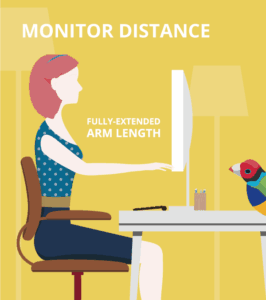
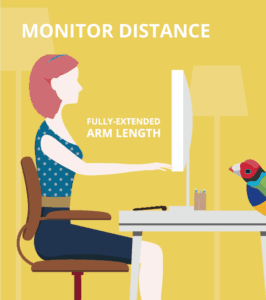
Ergonomic specialists emphasize that setting your monitor at the ideal distance—typically an arm’s length away—helps maintain a neutral spine position and reduces the risk of musculoskeletal issues.
For instance, imagine Alex, a graphic designer.
When Alex adjusted his monitor to the recommended distance, he not only noticed reduced eye fatigue but also a significant decrease in neck pain.
This simple adjustment highlights how the right monitor placement can improve overall well-being, making it an essential step for anyone working long hours at a desk.

The Science Behind Optimal Viewing Distance
The right monitor viewing distance is essential for reducing eye strain and maintaining good posture.
According to research published in the Journal of Ergonomics, the optimal monitor distance is at least an arm’s length away, typically between 20 and 30 inches for most users.
This distance ensures that your eyes can comfortably focus on the screen without excessive effort, reducing the likelihood of digital eye strain or fatigue.
Positioning your monitor correctly also supports a neutral neck posture.
Ideally, the top of the screen should align with or be slightly below eye level.
This setup prevents the need to tilt your head up or down, which can strain the cervical spine over time.
For example, if your monitor is too low, you are likely to hunch over, causing forward head posture.
Conversely, a monitor that is too high can force you to crane your neck upward.
Consider Sarah, an office worker who struggled with neck tension and frequent eye fatigue.
By adjusting her monitor to arm’s length and aligning the top of the screen with her eyes, she noticed an immediate improvement in her comfort and focus.
This simple adjustment underscores how proper monitor placement can enhance both productivity and physical well-being.
Factors That Affect Monitor Distance
Several factors come into play when determining the ideal monitor distance.
These variables can significantly impact both comfort and posture, and understanding them helps create a more ergonomic workspace.
Screen Size:
The size of your monitor is a key determinant of how far it should be positioned.
Larger screens require more distance to view the entire display comfortably without excessive head or eye movement.
For instance, a 32-inch monitor should typically be placed around 32-38 inches away, while smaller screens can be closer.
Placing a large screen too close can force you to move your head frequently, leading to neck strain.
Resolution:
High-resolution monitors offer better image quality, allowing users to sit closer without noticing pixelation.
However, this doesn’t mean you should neglect proper posture.
A high-resolution 27-inch monitor, for example, still benefits from a distance of around 27-33 inches to reduce visual and physical strain.
Personal Vision:
Individual vision plays a critical role.
Users with glasses, especially bifocal lenses, may need to position their monitor slightly lower to align with their line of sight.
Those with visual impairments might also adjust the distance for better clarity without compromising posture.
Desk Space:
Limited desk space often forces users to compromise on monitor placement.
Adjustable monitor arms or risers can help optimize the setup by allowing flexible positioning.
This ensures proper distance and alignment, even in compact workstations.
Considering these variables ensures a personalized and comfortable workspace tailored to individual needs.
Recommended Monitor Distances by Screen Size
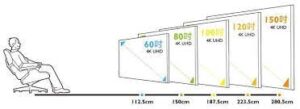
General guidelines for monitor distance, as endorsed by ergonomic research, are as follows:
- 24-inch monitor: 20-30 inches (50-76 cm)
- 27-inch monitor: 27-33 inches (68-84 cm)
- 32-inch monitor: 32-38 inches (81-96 cm)
These distances ensure that the screen fills your visual field without overwhelming it, enabling you to work comfortably for extended periods.
How Monitor Distance Impacts Posture?
Monitor placement plays a critical role in maintaining good posture.
When a monitor is positioned too far away, it often causes users to lean forward in an attempt to see the screen clearly.
This habit, over time, leads to forward head posture, where the head juts out in front of the shoulders.
According to research published in the Journal of Physical Therapy Science, every inch your head moves forward increases the strain on your neck and upper back muscles.
This can lead to chronic neck and shoulder pain, headaches, and even long-term musculoskeletal imbalances.
On the other hand, placing the monitor too close to your eyes encourages users to recline awkwardly, pushing the lower back into an unnatural curve.
This posture increases strain on the lumbar region and may lead to lower back discomfort, especially during prolonged screen use.
For example, consider Laura, a content writer who frequently adjusted her body to accommodate a poorly positioned monitor.
When her screen was too far, she unconsciously leaned forward, leading to persistent neck pain.
After repositioning her monitor to the correct distance—about an arm’s length—Laura noticed significant improvements.
Her head remained aligned with her shoulders and hips, supporting a neutral spine.
Achieving the correct monitor distance ensures that your posture stays balanced, reducing the risk of pain and supporting long-term musculoskeletal health.
It is a simple but powerful adjustment that makes a world of difference.
John’s Transformation
John, a 35-year-old graphic designer, spent over eight hours a day at his desk.
His monitor, a 27-inch screen, was positioned approximately 40 inches away—well beyond the recommended distance.
Over time, he developed neck pain and frequent headaches.
Upon consulting with an ergonomist, John learned about the importance of monitor distance.
By repositioning his monitor to 30 inches and slightly tilting the screen, John achieved a comfortable viewing experience.
Within weeks, his posture improved, and his neck pain significantly decreased.
Step-by-Step Guide to Setting Your Monitor Distance
Proper monitor placement is essential for reducing neck and eye strain, promoting better posture, and ensuring a comfortable work environment.
Follow these steps to achieve the ideal monitor setup:
Measure Your Arm’s Length:
Start by sitting comfortably in your chair with your back straight.
Extend your arm fully toward your monitor; your fingertips should just touch the screen.
This ensures the monitor is at least 20 inches away. For larger screens, consider slightly greater distances based on the size-specific guidelines discussed earlier.
Adjust Monitor Height:
Position the top of your monitor at or just below eye level.
This prevents you from tilting your neck up or down, which can strain your cervical spine.
Use a level or ruler to make precise adjustments, especially if your screen is not height-adjustable.
Fine-Tune Screen Tilt:
Tilt your monitor slightly backward, ideally by 10-20 degrees.
This helps align your line of sight with the center of the screen, reducing the need for unnecessary head movements.
Consider Screen Size:
For larger monitors, adjust the distance proportionally.
For example, a 27-inch screen typically requires a distance of 27-33 inches, while smaller monitors can be placed closer.
Use Ergonomic Accessories:
If your desk setup does not allow proper alignment, invest in monitor stands, risers, or adjustable arms.
These accessories enable precise positioning, ensuring both comfort and ergonomic compliance.
By following these steps, you will create a workspace that not only improves your posture but also enhances productivity and overall well-being.
Small changes can make a big difference in how you feel during and after work.
Common Mistakes to Avoid
- Overestimating Screen Size: Larger screens don’t mean closer viewing distances. Keep within recommended ranges to avoid neck strain.
- Neglecting Lighting Conditions: Glare from poorly positioned monitors can force awkward postures. Use anti-glare screens or reposition your monitor to avoid this.
- Ignoring Desk Layout: Ensure your desk allows enough space for proper monitor placement. Use monitor arms to free up desk space if needed.
- Skipping Breaks: Even with an optimized setup, prolonged screen use without breaks can lead to strain. Follow the 20-20-20 rule: every 20 minutes, look 20 feet away for 20 seconds.
FAQs on Fixing Tech Neck by Adjusting Monitor Distance
Here are answers to the top queries regarding correct monitor usage to prevent a hunchback:
Q-1: What is the ideal monitor distance for eye comfort and posture at a desk?
A-1: The ideal monitor distance is typically 20 to 40 inches (50–100 cm) from your eyes, depending on screen size. According to workplace ergonomics data in the United States, nearly 65% of adults report digital eye strain, often due to improper screen distance. Maintaining this range reduces eye fatigue and helps keep your head aligned over your shoulders, preventing forward neck posture.
Q-2: How far should a computer screen be from your eyes for proper posture?
A-2: A computer screen should be about an arm’s length away, which averages around 25 inches for most adults. Studies show that over 60% of office workers adopt forward head posture when screens are too close. Proper distance ensures you don’t lean forward, helping maintain a neutral spine and reducing cervical strain.
Q-3: What is the best monitor distance and height setup to avoid neck and eye strain?
A-3: The top of the monitor should be at or slightly below eye level, with a viewing distance of 20–40 inches. Research indicates approximately 58% of workers experience neck pain annually, often due to incorrect monitor height and distance. This setup promotes a slight downward gaze, which reduces strain on both the eyes and neck.
Q-4: What is the correct viewing distance for a computer monitor to reduce eye fatigue?
A-4: A distance of at least 20 inches helps reduce eye strain by allowing the eyes to relax and focus comfortably. During events like the COVID-19 pandemic, screen time increased by over 30% in the United States, leading to a surge in eye fatigue complaints. Proper viewing distance minimizes constant refocusing, which tires the eye muscles.
Q-5: What is the ergonomic monitor distance and angle for healthy neck alignment?
A-5: The optimal setup includes a viewing angle of about 15 to 20 degrees downward with the monitor positioned 20–40 inches away. Around 70% of computer users report discomfort in the neck and shoulders, largely due to improper angles. A slight downward gaze keeps the neck in a natural position, reducing strain.
Q-6: How should you position a monitor for optimal viewing distance and posture at work?
A-6: Place the monitor directly in front of you, at arm’s length, and ensure it is centered with your body. Workplace studies show that over 75% of employees using improper setups report musculoskeletal discomfort. Centered positioning avoids twisting the neck and shoulders, helping maintain symmetrical posture.
Q-7: What are monitor distance guidelines for office workers to prevent tech neck?
A-7: Office ergonomics guidelines recommend keeping the monitor 20–40 inches away and slightly below eye level. Tech neck affects nearly 1 in 3 adults annually in the U.S., largely due to prolonged screen use. Following these guidelines helps keep the head aligned and reduces forward bending.
Q-8: How do you adjust monitor distance for dual screens and better posture?
A-8: For dual monitors, place the primary screen directly in front and the secondary screen at the same distance, angled slightly inward. Surveys show that over 40% of dual-monitor users experience neck strain, often due to uneven positioning. Keeping both screens at equal distance prevents repetitive neck turning.
Q-9: What is the recommended screen distance and viewing angle for an ergonomic workstation setup?
A-9: An ergonomic setup includes a screen distance of 20–40 inches and a downward viewing angle of 15–20 degrees. Approximately 80% of desk workers report some form of posture-related discomfort, emphasizing the importance of correct setup. This combination reduces eye strain and maintains spinal alignment.
Q-10: What happens if your monitor is too close or too far in terms of posture and eye strain?
A-10: If the monitor is too close, it increases eye strain and encourages forward head posture. If too far, users tend to lean in, causing neck and back strain. Studies show over 65% of individuals with poor monitor placement report recurring discomfort. Maintaining the correct distance ensures both visual comfort and proper posture.
The Power of Small Adjustments
Setting your monitor at the correct distance may seem like a small change, but it can have a profound impact on your comfort, posture, and overall productivity.
By understanding the factors that influence monitor distance and following ergonomic guidelines, you can create a workspace that supports both visual clarity and physical health.
Small adjustments, like moving your monitor closer or farther, can lead to big improvements in how you feel at the end of a long workday.
Remember, your posture and comfort are worth the effort.
References: